Creating Your First Stroop Test
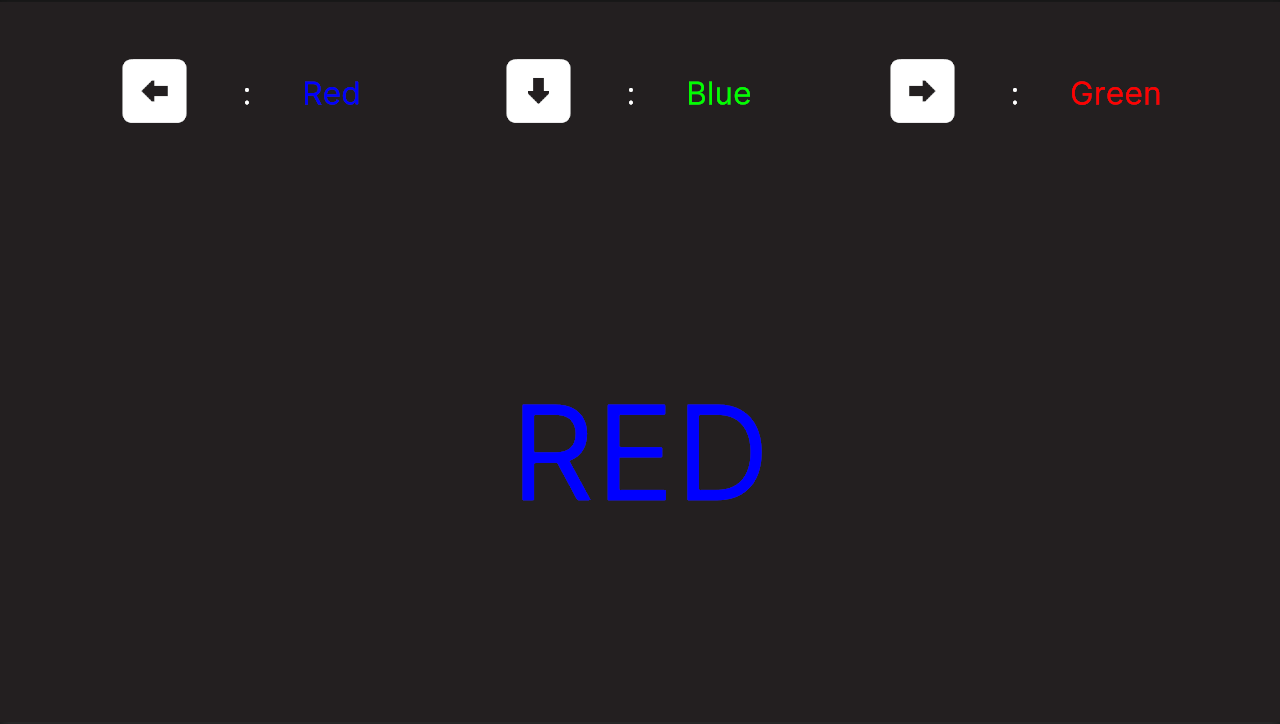
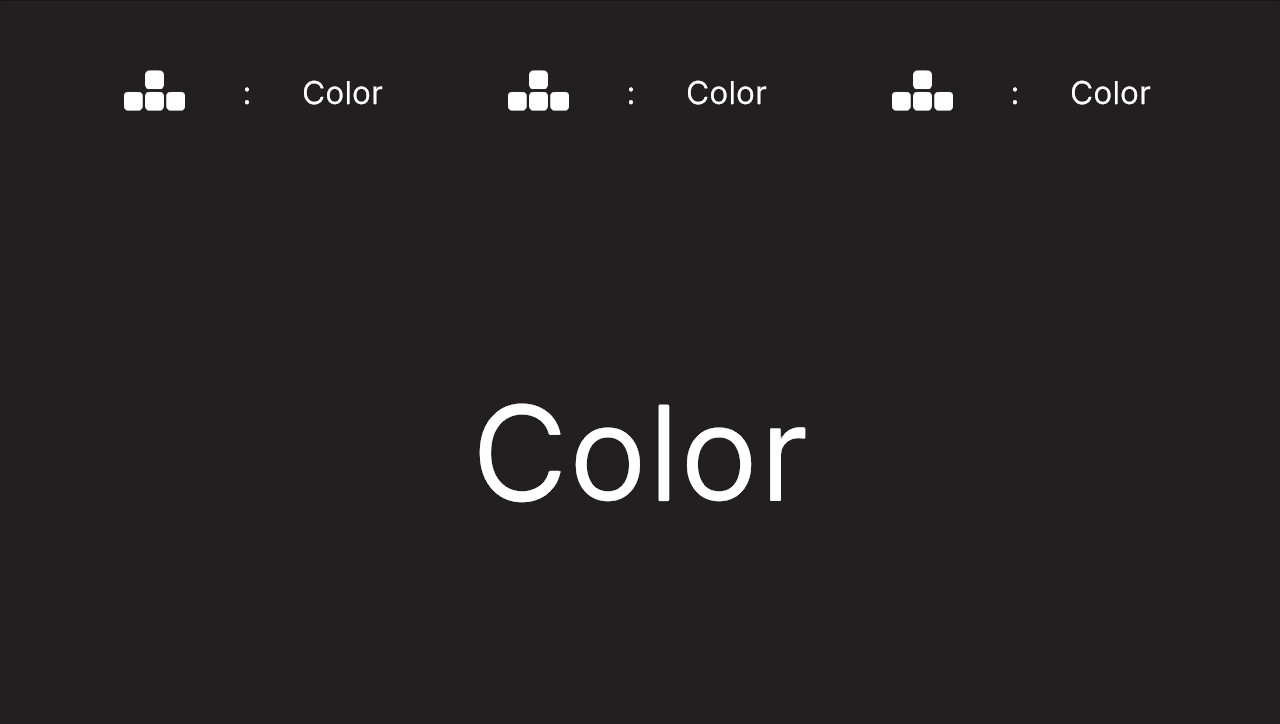
This guide walks you through the steps to create a simple Stroop Test in Unity using the provided templates and components. You'll learn how to set up a Stroop Test scene, configure input prompts, define a sequence of stimuli, and connect everything so that participants can complete the test and have their responses recorded. By the end of this guide, you'll have a functioning Stroop Test ready for deployment in your study.
1. Create the Stroop Test Scene
First, create a Stroop Test Scene. Use the Stroop Test scene template, which provides a ready-made setup with all the necessary components for running a Stroop Test.
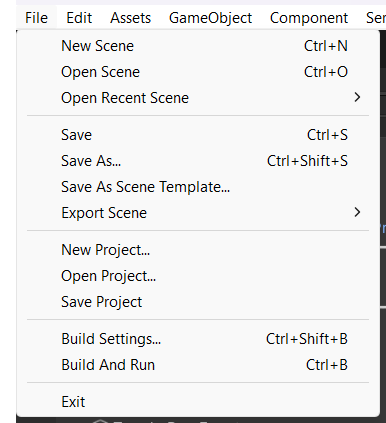
In Unity's main menu, select File > New Scene (or press Ctrl + N).
In the New Scene Dialog, select the Stroop Test template.
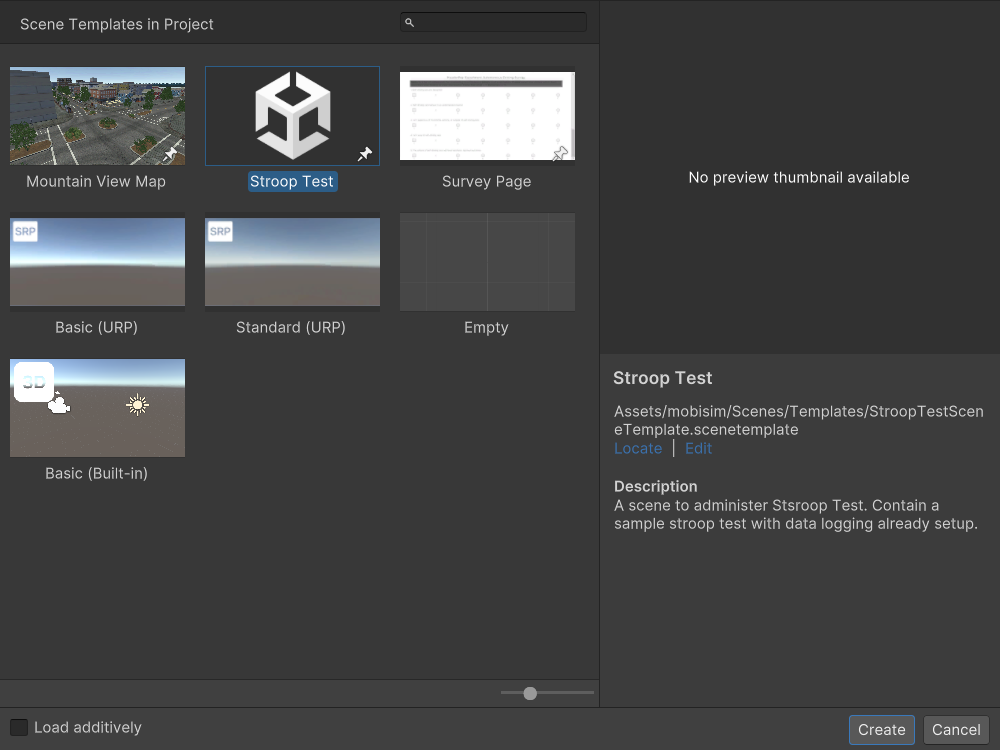
An Untitled Stroop Test scene opens in the Editor.
Save the scene immediately (Ctrl + S), choose a location, and give it a meaningful name (for example, MyFirstStroopTest).
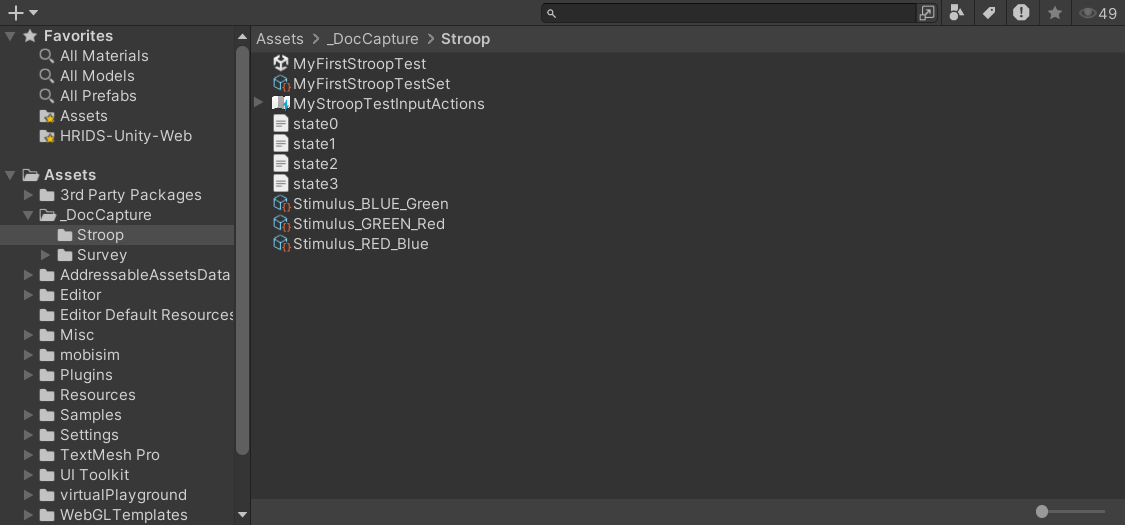
You should now have a Stroop Test Scene with a sample Stroop Test and input already set up.
2. Optional Input Actions Setup
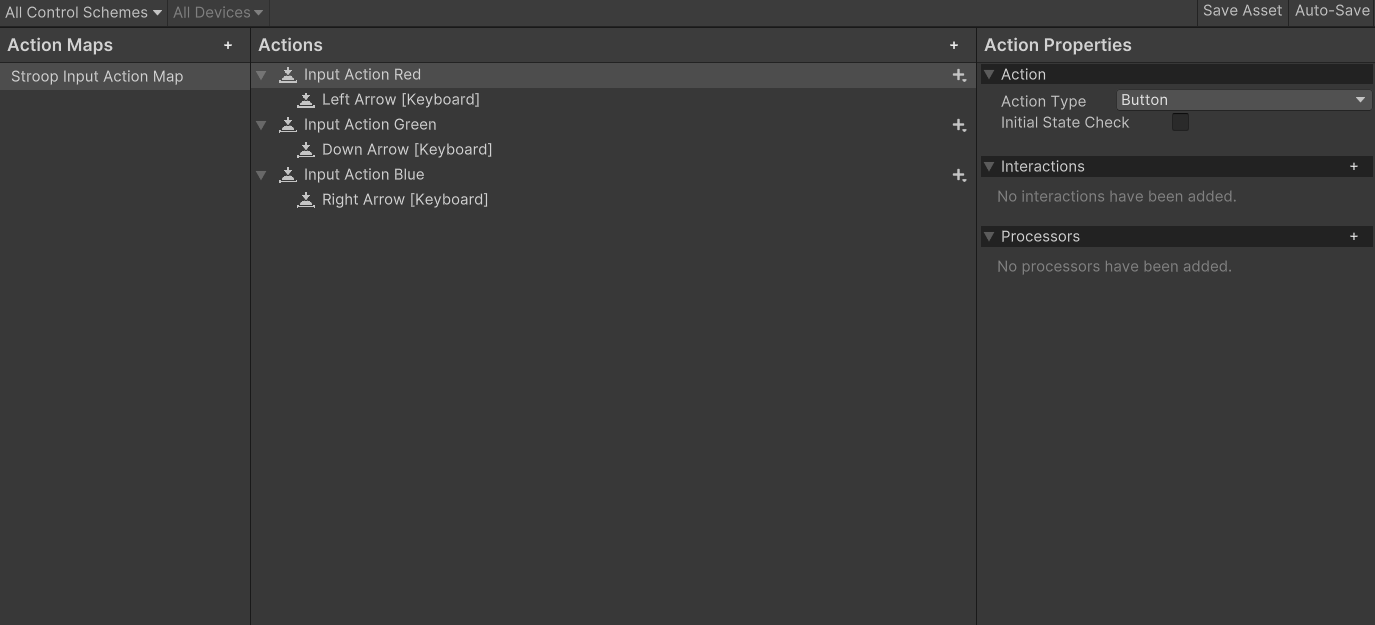
This optional section guides you through creating an Input Actions asset similar to the pre-configured StroopTestInputAction asset included in the template, so you can replicate or modify it if needed. (The pre-configured asset names its map Stroop Input Action Map and its actions Input Action Red (Left Arrow), Input Action Green (Down Arrow), and Input Action Blue (Right Arrow).)
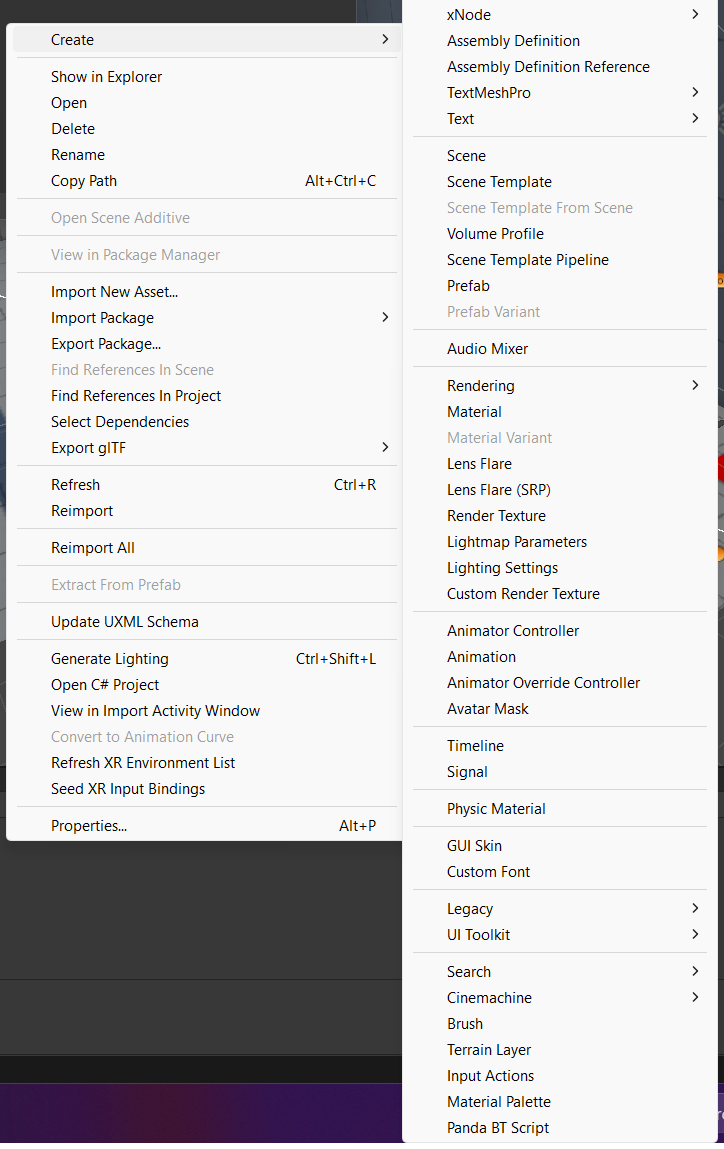
In the Project window, select Right-click > Create > Input Actions. Give the new asset a name, for example MyStroopTestInputActions.
Double-click the newly created Input Actions asset in the Project window to open the Input Actions editor.
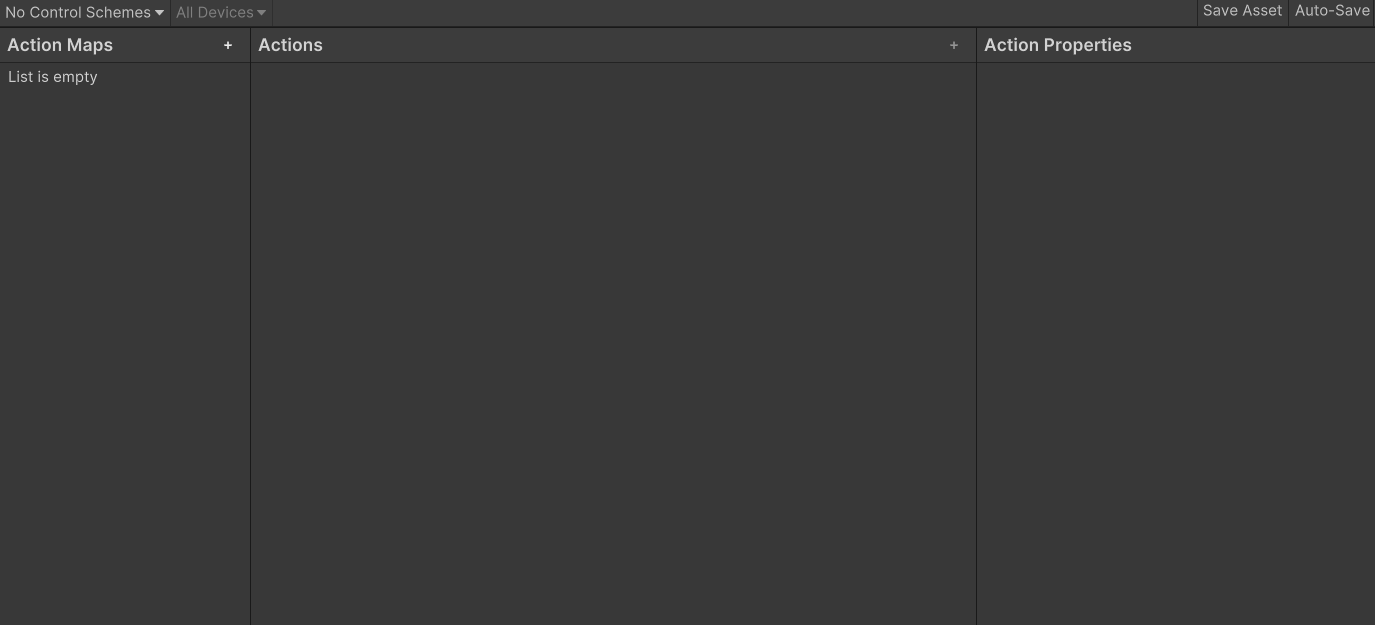
In the Action Maps panel on the left, click + to create an Action Map. Enter a descriptive name for the map, for example My Stroop Input Action Map.

An Action Map is a container for input bindings and actions.
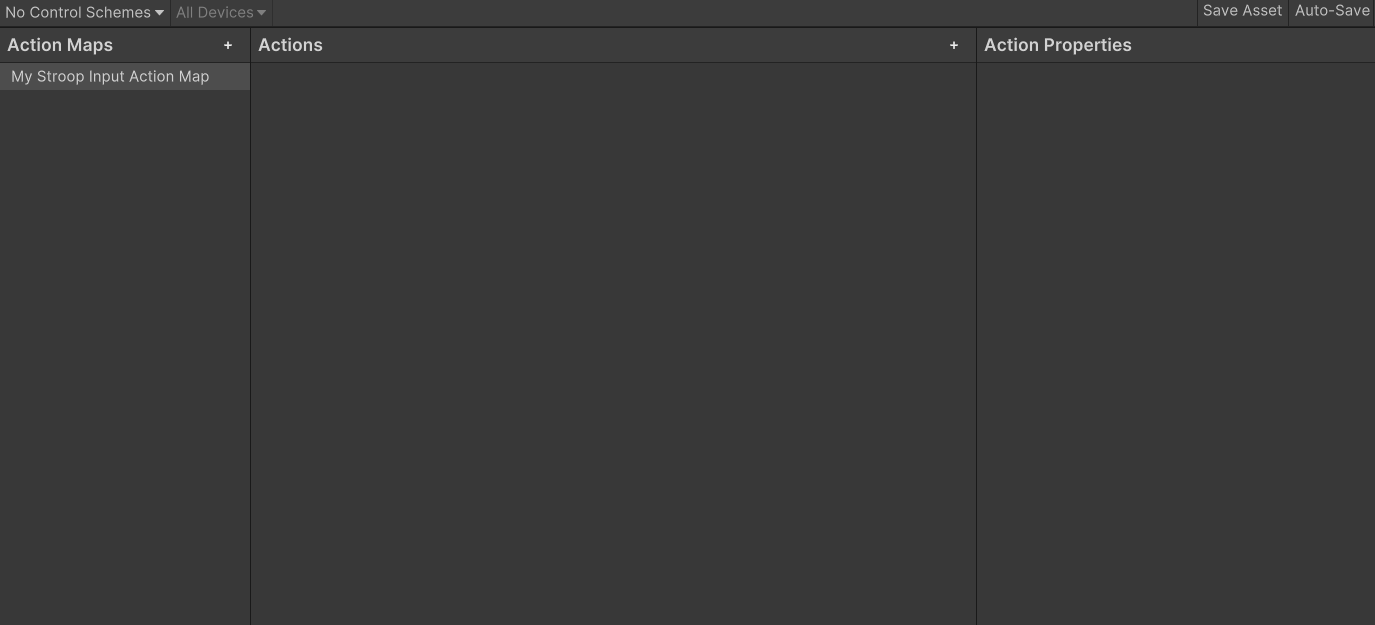
In the Actions panel, click + to add new actions.

Create three actions and name them SelectRed, SelectBlue, and SelectGreen.
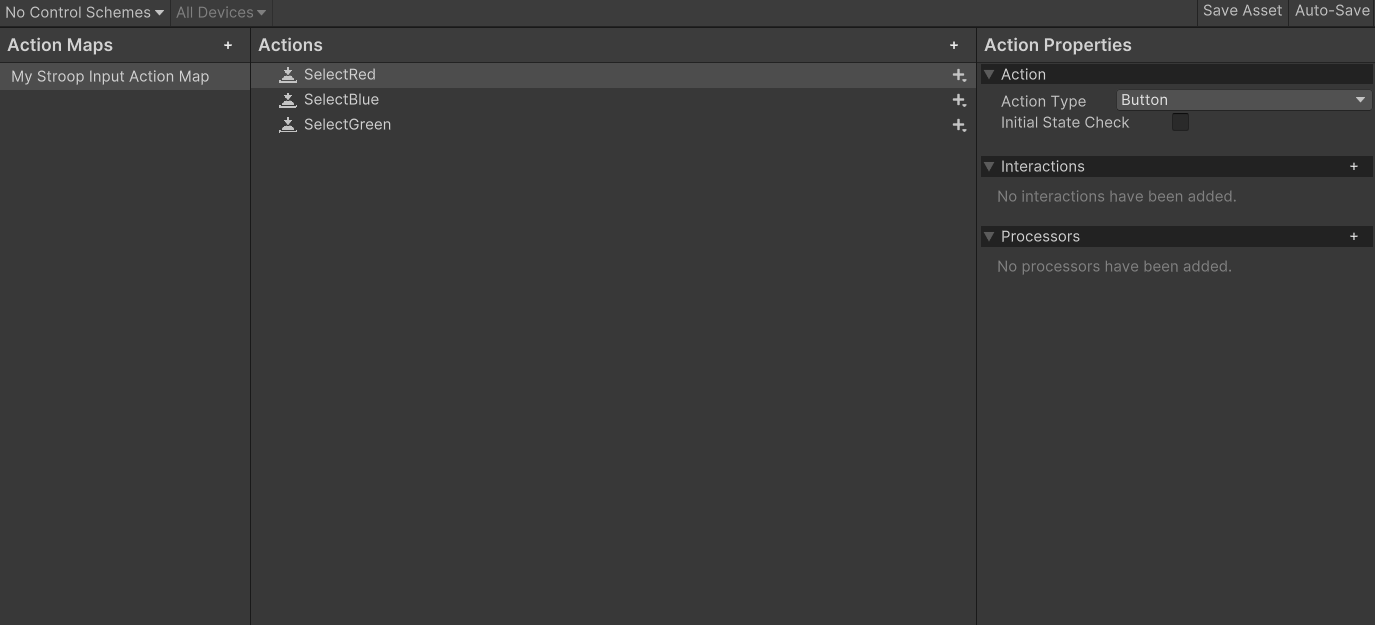
In the Action Properties panel, set the Action Type for each action to Button.

Click the + button next to an action to create a binding.
In the Binding Properties panel, click the Path field to bind an input to the action.
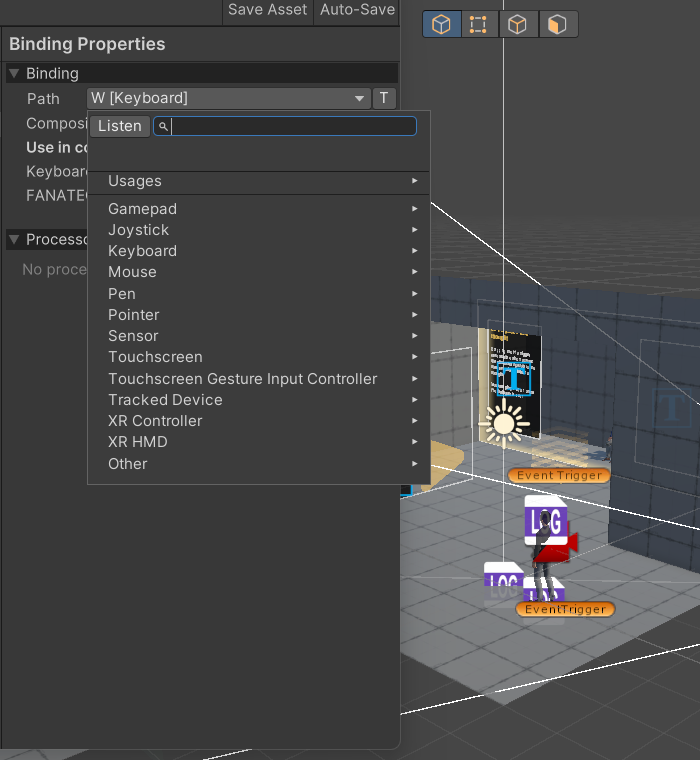
Assign keys or buttons to each action:
SelectRed→Keyboard → Left ArrowSelectBlue→Keyboard → Down ArrowSelectGreen→Keyboard → Right Arrow
Click the Save Asset button to save your changes.

In the Hierarchy, select StroopTest UI Document.
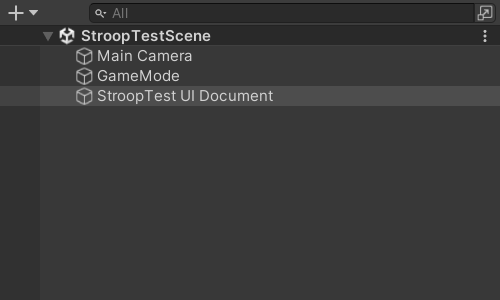
In the Inspector, find the StroopTestGenerator component, locate the Action References list, and assign the following InputActionReferences to it (replacing the three pre-assigned references): SelectRed, SelectBlue, SelectGreen.
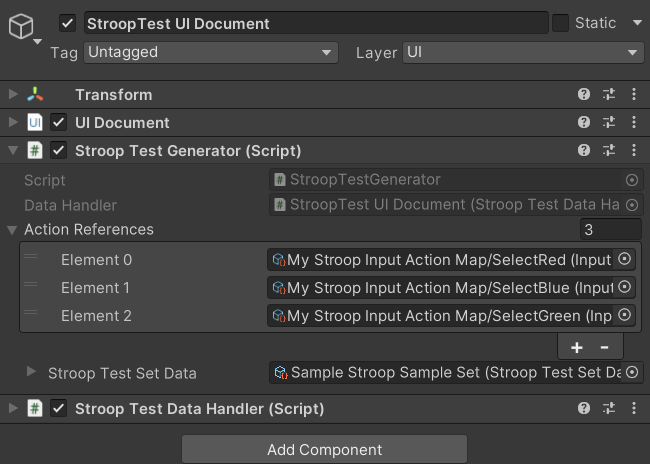
Save the scene (Ctrl/Cmd+S).
With these steps complete, your custom input actions are fully set up and connected to the Stroop Test scene. You can now move on to creating the stimuli, and then the Stroop Test Set Data, which together drive the actual test.
3. Creating Stroop Test Stimuli
Next, create Stroop Test Stimulus assets to define the three stimuli shown below:


In the Project window, right-click and select Create > ScriptableObject > Assessments > StroopTest > Stimulus. Name the new asset Stimulus_RED_Blue.
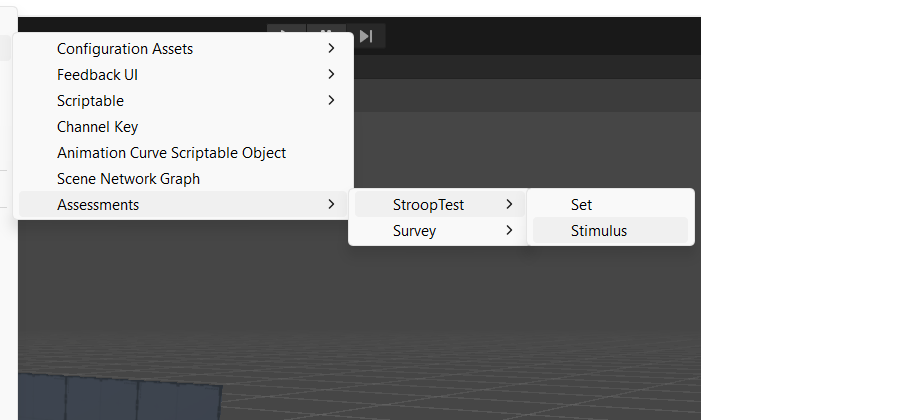
With the asset selected, set Word to RED and Color to in the Inspector.
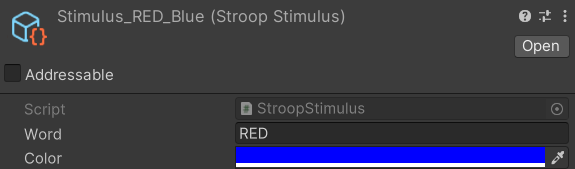
Repeat steps 1–2 to create two more stimuli:
-
Stimulus_BLUE_Greenwith Word:BLUE, Color: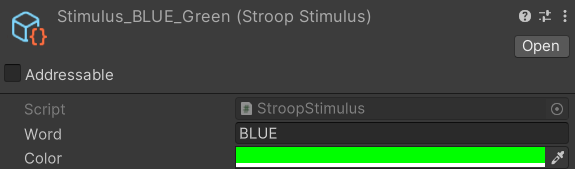
-
Stimulus_GREEN_Redwith Word:GREEN, Color: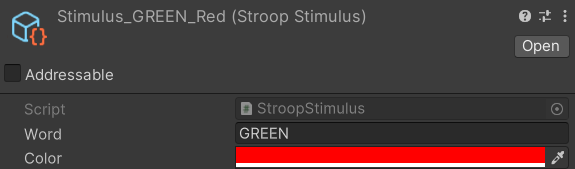
With these three Stroop Test Stimulus assets created, you now have the building blocks needed for the test. In the next section, you configure the Stroop Test Set Data, where these stimuli are linked to input prompts to define the actual test items.
4. Creating Stroop Test Set Data
Now that the stimuli are ready, you can create Stroop Test Set Data assets. These assets define what participants see during a Stroop Test.
In the Project window, right-click and select Create > ScriptableObject > Assessments > StroopTest > Set. Give the new asset a name that makes it easy to identify later.
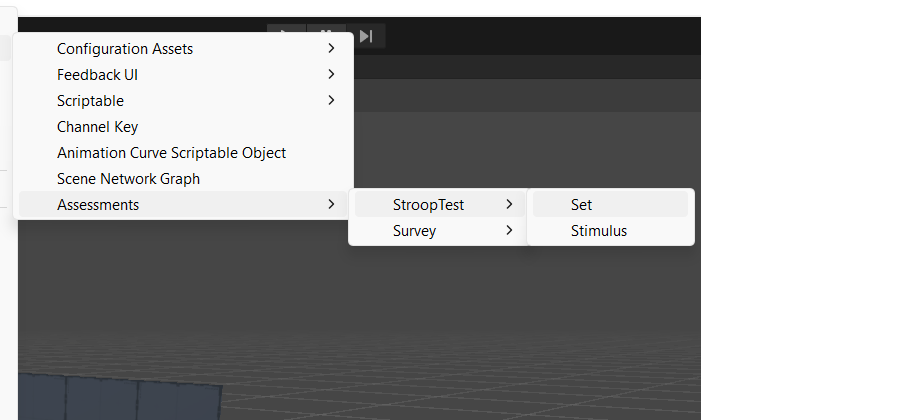
Select the Set Data asset. The Inspector should now show the Input Prompt boxes and the Stroop Stimuli list.
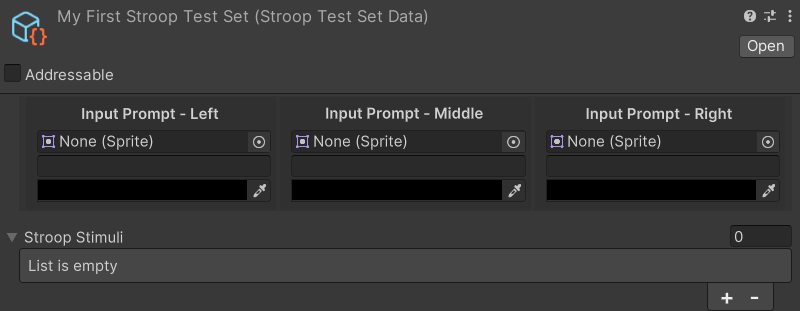
Configure Input Prompt - Left in the Inspector.
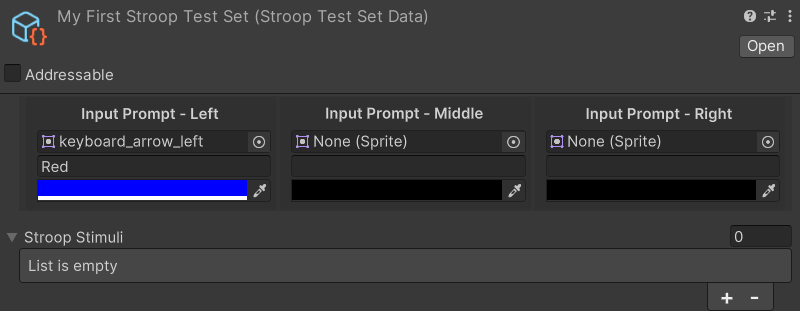
- In the top image field, assign
keyboard_arrow_left.png. - In the middle field, enter
Red. - In the bottom color field, set the color to .
Configure Input Prompt - Middle in the Inspector.
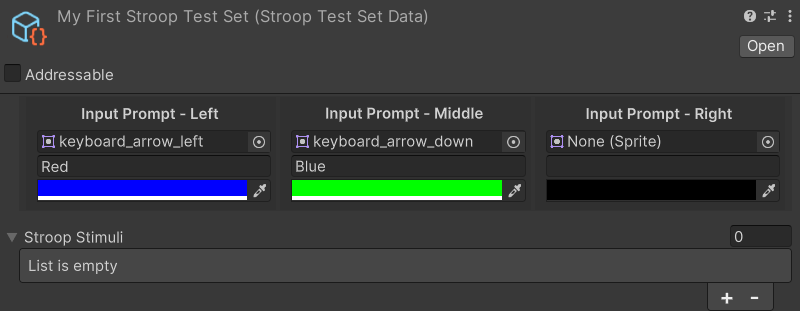
- In the top image field, assign
keyboard_arrow_down.png. - In the middle field, enter
Blue. - In the bottom color field, set the color to .
Configure Input Prompt - Right in the Inspector.
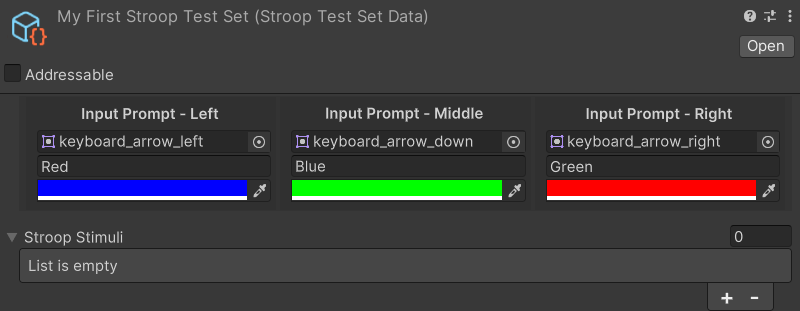
- In the top image field, assign
keyboard_arrow_right.png. - In the middle field, enter
Green. - In the bottom color field, set the color to .
Set the Stroop Stimuli list's Size to 3.
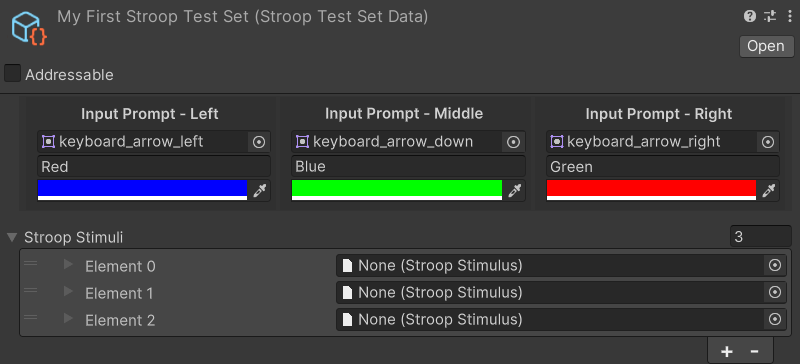
Assign each element of the Stroop Stimuli list to the corresponding stimulus asset:
- Element 0 →
Stimulus_RED_Blue - Element 1 →
Stimulus_BLUE_Green - Element 2 →
Stimulus_GREEN_Red
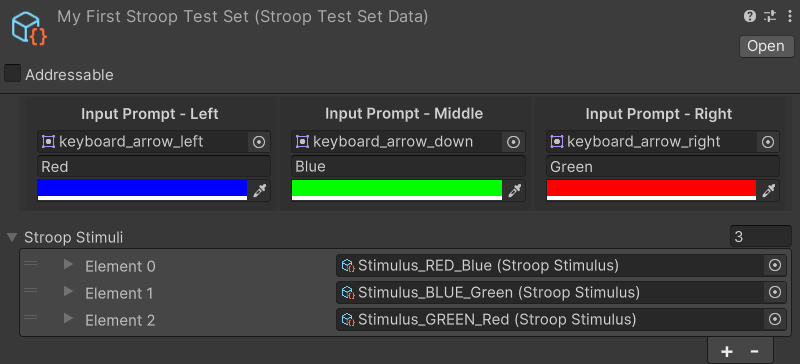
The order of stimuli in the list determines the sequence in which they appear during the test. Make sure each stimulus is placed in the correct position to match its intended input prompt.
In the Hierarchy, select the StroopTest UI Document GameObject.
In the Inspector, locate the Stroop Test Set Data field on the Stroop Test Generator component.
Drag your newly created Set Data asset from the Project window into the Stroop Test Set Data field.
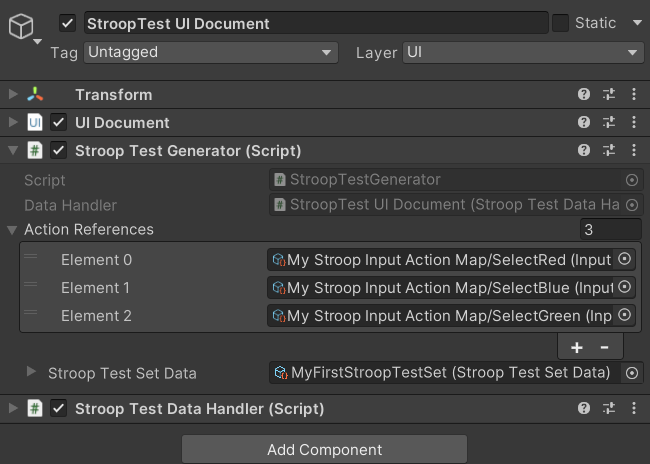
With the Set Data asset assigned to the Stroop Test Generator in the scene, the Stroop Test is fully configured. You can now click Play to test whether the stimuli work as expected.